

Step by step
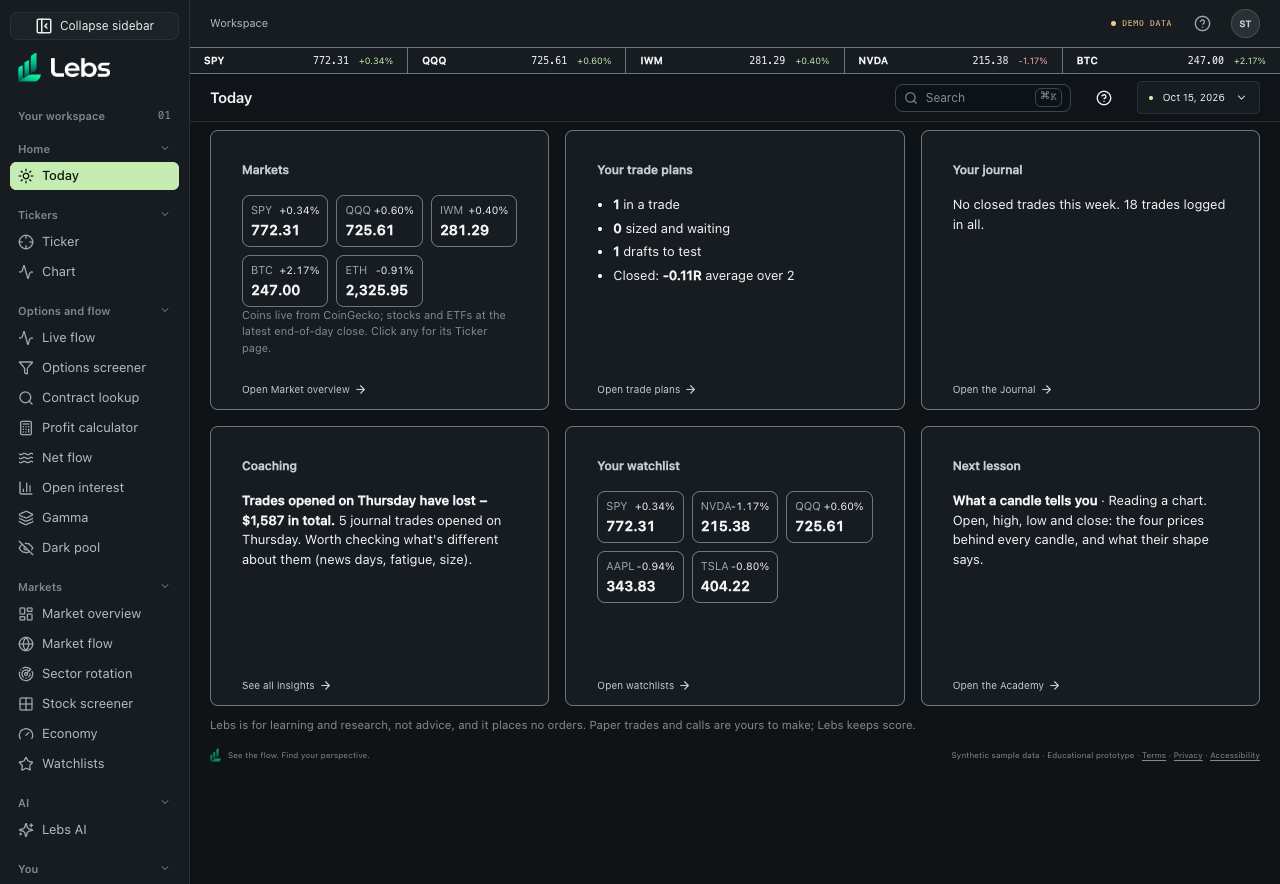
- Sign in. A new account first gets five quick questions (what you trade, how, your experience and what you want from Lebs); the answers put the right tools first. Skip them if you like. Then you land on Today, a one-page summary of the markets, your plans, your journal results and your next lesson.
- Look at the sidebar on the left. Each item is a screen (a 'tab'). Click one to open it; the address bar changes too, so you can bookmark any screen.
- Choose a workspace on Home. Its sidebar shows that workspace's tools, with Home and a workspace switcher at the top. Every tool is also one search away in the command bar.
- Press ⌘K (Mac) or Ctrl+K (Windows) from anywhere to open the command bar. Type a screen name, a stock or coin, a lesson or an action and press Enter.
- Click the small 'DEMO DATA' badge at the top right to see where every number comes from and whether each data source is live right now.
- Each screen has a one-row header that stays at the top as you scroll: its name, then on the right a search field (the same command bar as ⌘K), a ? button that opens the matching article in this guide, and the sample-session date. On a narrow window the search field shrinks to its icon.
Every control, explained
- Sidebar
- The tools for the current workspace, with Home and a workspace switcher. How: Click to open. On a phone, tap the menu button at the top left to show it.
- Command bar (⌘K / Ctrl+K)
- A search box for everything: screens, actions, every US stock and ETF, every coin, every lesson, and your saved notes. How: Press the shortcut, type, use the arrow keys to pick, press Enter. You can also click the microphone (in supported browsers) and say 'go to sector rotation'.
- Ticker strip
- The row of prices under the top bar, for a quick look at the main markets in the sample session. How: Read only. Turn it off in Settings; it never shows on Chart or Gamma.
- Data status (the DEMO DATA badge)
- Shows each data source (CoinGecko, Massive, U.S. Treasury, FINRA, sample data), whether it's live, end of day, weekly, stale or down, and how long it took to answer. How: Click the badge; click 'Check again' to re-test.
- Keyboard shortcuts
- ? shows the list; Alt+1…9 jumps to Today, Ticker, Chart, Live flow, Options screener, Contract lookup, Net flow, Open interest and Gamma. How: Press ? when you're not typing in a box.
- Goal quiz
- Five questions for a new account: what you trade (stocks, ETFs, options, crypto, futures), how (day, swing, long-term, still learning), your experience and what you want from Lebs, plus an optional line in your own words. The answers order the workspace tiles, pick a starter watchlist, put your courses first in the Academy and fill the 'Set up for you' strip on Today. It never tells you what to trade. How: Answer or skip on first sign-in; change the answers any time in Settings or from Today. The last question shows exactly what will change. The free text is read by Lebs's own keyword rules and saved only with your account.
Reading the numbers
- Market data
- A real number from the named source, as of the time shown.
- Estimate
- Calculated from data under stated assumptions (for example dealer gamma exposure); not observed directly.
- Model prediction
- Output of a statistical model, with its testing shown. Not a promise.
- Simulated
- Sample data, paper trades or hypothetical scenarios. Nothing real happened.
- Sample
- Made-up data used to show how a tool works, for example the options flow session on Oct 15, 2026.
Tips
- Use the workspace switcher to move between groups of tools.
- Bookmark the screens you use most; every screen has its own link.
Common mistakes
- Treating sample data as real. Anything labelled sample, synthetic or simulated is for learning only.
- Assuming Lebs places trades. It never does: there's no broker connected, and paper trades are pretend.
Limits to know
- Stock prices are end of day on the current free data plan; crypto is close to live.
- Options flow, option chains and the AI's long history are sample data until a licensed feed is added.
Try it: Press ⌘K, type 'today' and press Enter. Then press ⌘K again, type 'AAPL' and press Enter to open Apple's Ticker page.
Lebs is for education and research, not investment advice, and it places no orders.