
Step by step
- Open Settings from the bottom of the sidebar.
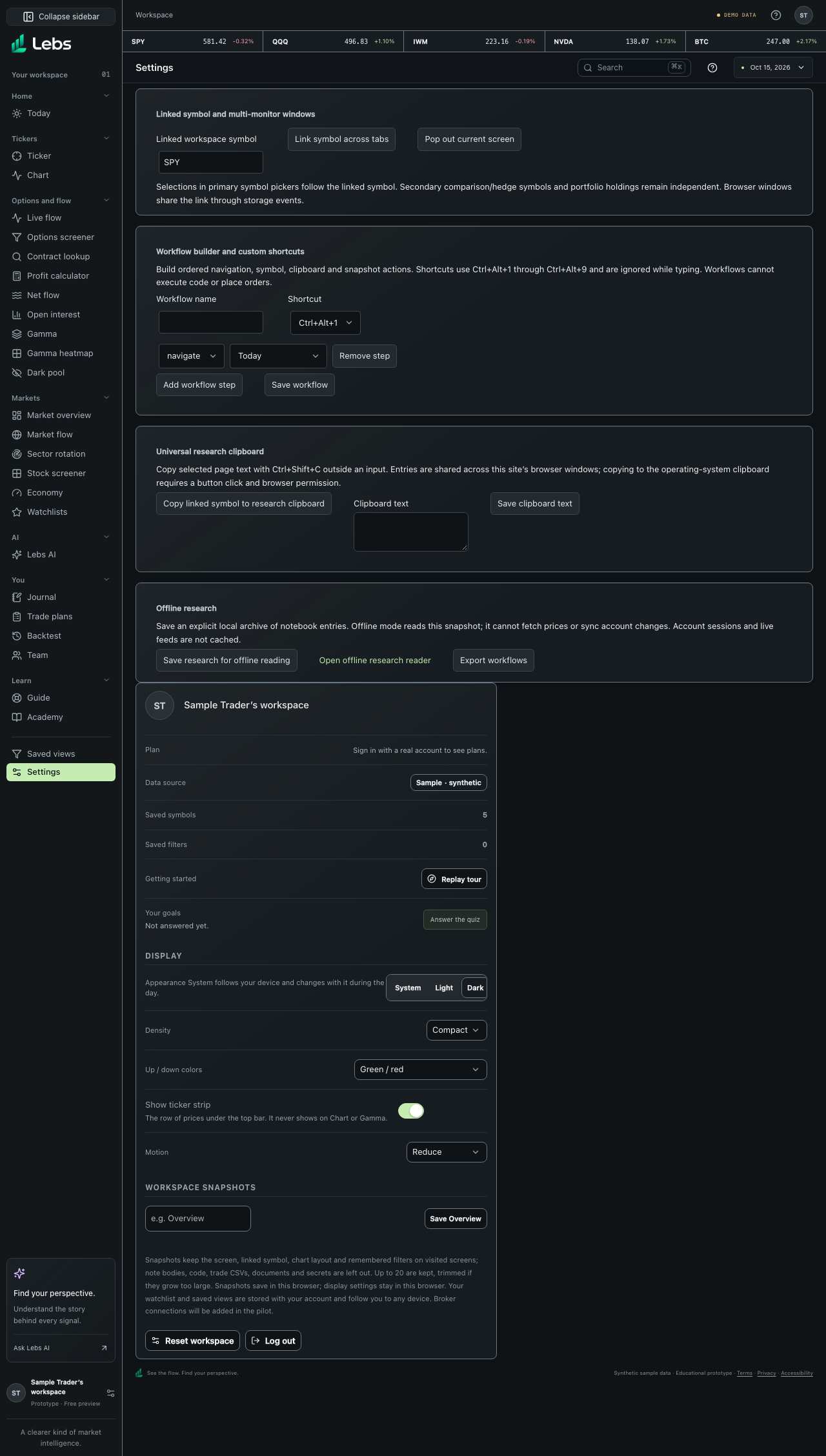
- Display: choose compact (the default) or comfortable density, green/red or color-blind-safe blue/orange for up and down, whether to show the ticker strip, reduce transparency, and reduce motion.
- Snapshots: name and save the current screen with its linked symbol, chart layout and remembered filters; restore it later from Settings or ⌘K.
- Workflows: chain allowed actions (open a screen, set a symbol, copy text, save a snapshot) and run them with Ctrl+Alt+1 to 9.
- Linked symbol and windows: pop the current screen out into its own browser window (handy with two monitors); charts, execution and options tools share the same symbol, even across windows.
- Universal clipboard: keep recent snippets; Ctrl+Shift+C saves the selected text.
- Offline research: save your research notes for reading without an internet connection at /offline/.
- Saved views (in the sidebar) opens your saved Options flow filters. 'Log out' and 'Reset workspace' are here too; resetting the workspace, deleting a snapshot and deleting your account each ask you to confirm first.
Every control, explained
- Your goals
- Your goal-quiz answers in one line. How: Click 'Change answers' to retake the quiz; the sidebar, Today and lesson order update.
- Display
- Appearance (System, Light or Dark), density, color palette, ticker strip, transparency and motion. How: Pick from the menus or flip the switch; saved in this browser. System follows your device.
- Snapshots
- Up to 20 saved workspace states. How: Name, save, open or delete (it asks first).
- Workflows and shortcuts
- Simple macros with keyboard shortcuts. How: Build in Settings; shortcuts are ignored while you're typing.
- Pop-out windows
- Open a screen in a new window. How: Your browser may ask to allow pop-ups.
- Clipboard and offline reading
- Recent snippets; an offline copy of notes. How: Both stay in this browser.
- Data status
- Live health of every data source. How: Click the DEMO DATA badge in the top bar.
Limits to know
- Display settings, clipboard, workflows and offline notes stay in this browser; snapshots save to your account when signed in.
Try it: Switch the up/down colors to blue/orange, then save a snapshot of the Trading chart.
Lebs is for education and research, not investment advice, and it places no orders.